tmux-cli — Terminal Automation
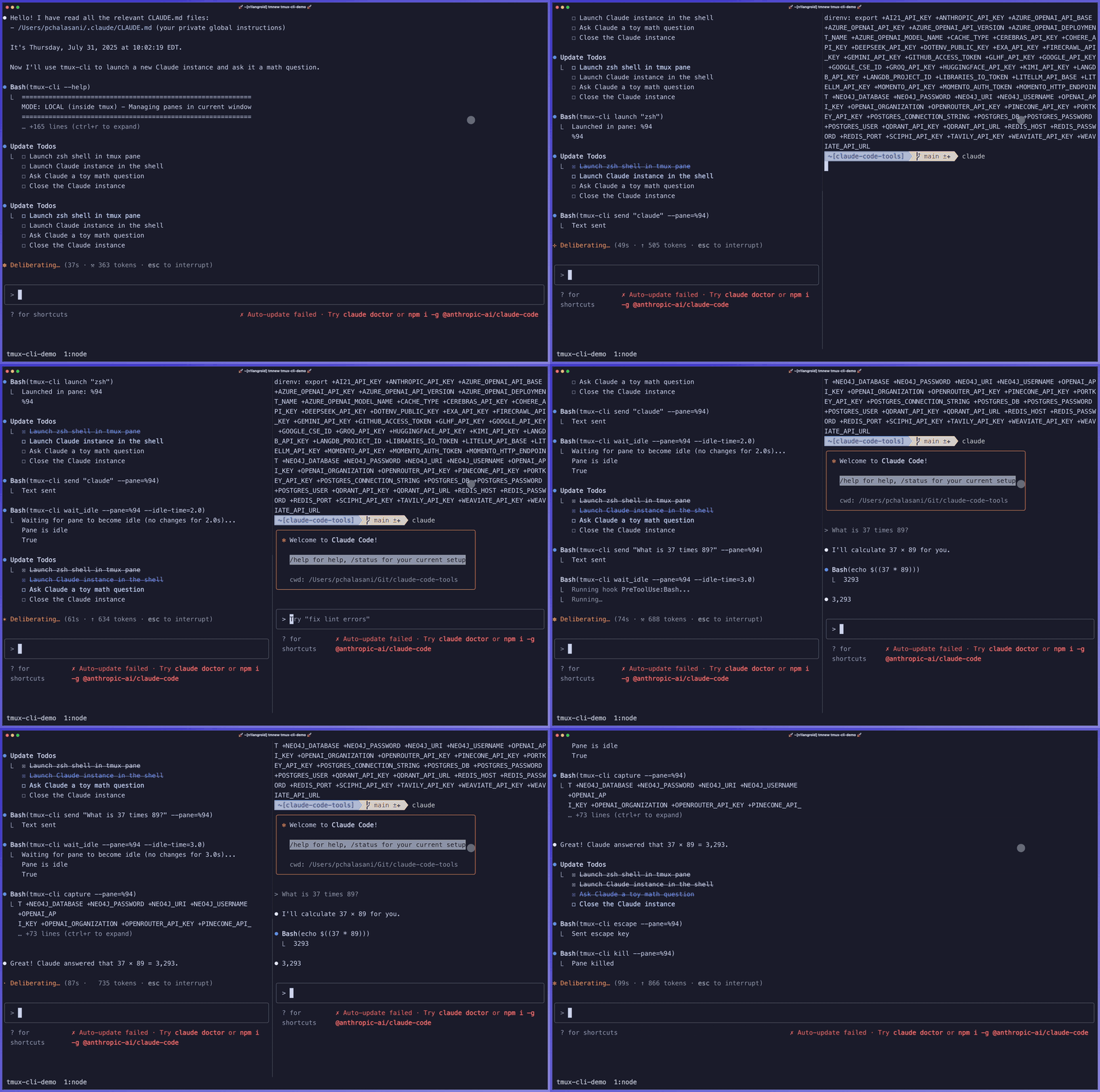
tmux-cli is a command-line tool for controlling CLI
applications running in tmux panes and windows. It
automatically detects whether you are inside or outside
tmux and uses the appropriate mode.
What It Does
Section titled “What It Does”tmux-cli gives Claude Code (or any CLI agent) the
ability to launch, send input to, capture output
from, and kill programs running in tmux panes. This
enables powerful multi-pane workflows where an agent can
orchestrate several terminal applications simultaneously.
Auto-Detection
Section titled “Auto-Detection”- Inside tmux (Local Mode) — Manages panes in your current tmux window.
- Outside tmux (Remote Mode) — Creates and manages a separate tmux session with windows.
Key Features
Section titled “Key Features”- Launch shells and programs in new tmux panes
- Send keystrokes (with configurable delay and auto-retry)
- Capture pane output for inspection
- Wait for a pane to become idle before proceeding
- Execute a command and get its exit code as JSON
- Interrupt (
Ctrl+C) or sendEscapeto any pane - Safety guard: cannot kill your own pane
Quick Start
Section titled “Quick Start”-
Always launch a shell first to prevent losing output when commands fail:
Terminal window tmux-cli launch "zsh" # returns pane ID -
Run commands in the shell pane:
Terminal window tmux-cli send "pytest tests/" --pane=2 -
Wait and capture the result:
Terminal window tmux-cli wait_idle --pane=2tmux-cli capture --pane=2 -
Clean up when done:
Terminal window tmux-cli kill --pane=2
Typical Workflow
Section titled “Typical Workflow”# 1. Launch a shelltmux-cli launch "zsh" # => pane ID, e.g. 2
# 2. Run your command inside that shelltmux-cli send "python script.py" --pane=2
# 3. Interact and inspecttmux-cli send "some input" --pane=2tmux-cli capture --pane=2
# 4. Clean uptmux-cli kill --pane=2Learn More
Section titled “Learn More”- Command Reference — Full list of
all
tmux-clicommands and their options. - Resources — Curated links to articles, videos, and tools for advanced tmux + Claude Code integration.